



Zoom Integration Document URL
When you connect your Zoom account with Calendar Lite Booking, Calendar Lite will help you:
- Generate Zoom links automatically without your intervention.
- Share a secure, different Zoom URL for each booking.
Choosing Zoom as your event location will allow you to automatically create video conference details and save them to your Calendar Lite appointment. Once the appointment is made, Zoom details will be automatically included in the confirmation email notifications sent to your participants.
To use Zoom Integration, you must have a Zoom account.
Setting up Zoom
To integrate Calendar Lite with Zoom, follow these steps:
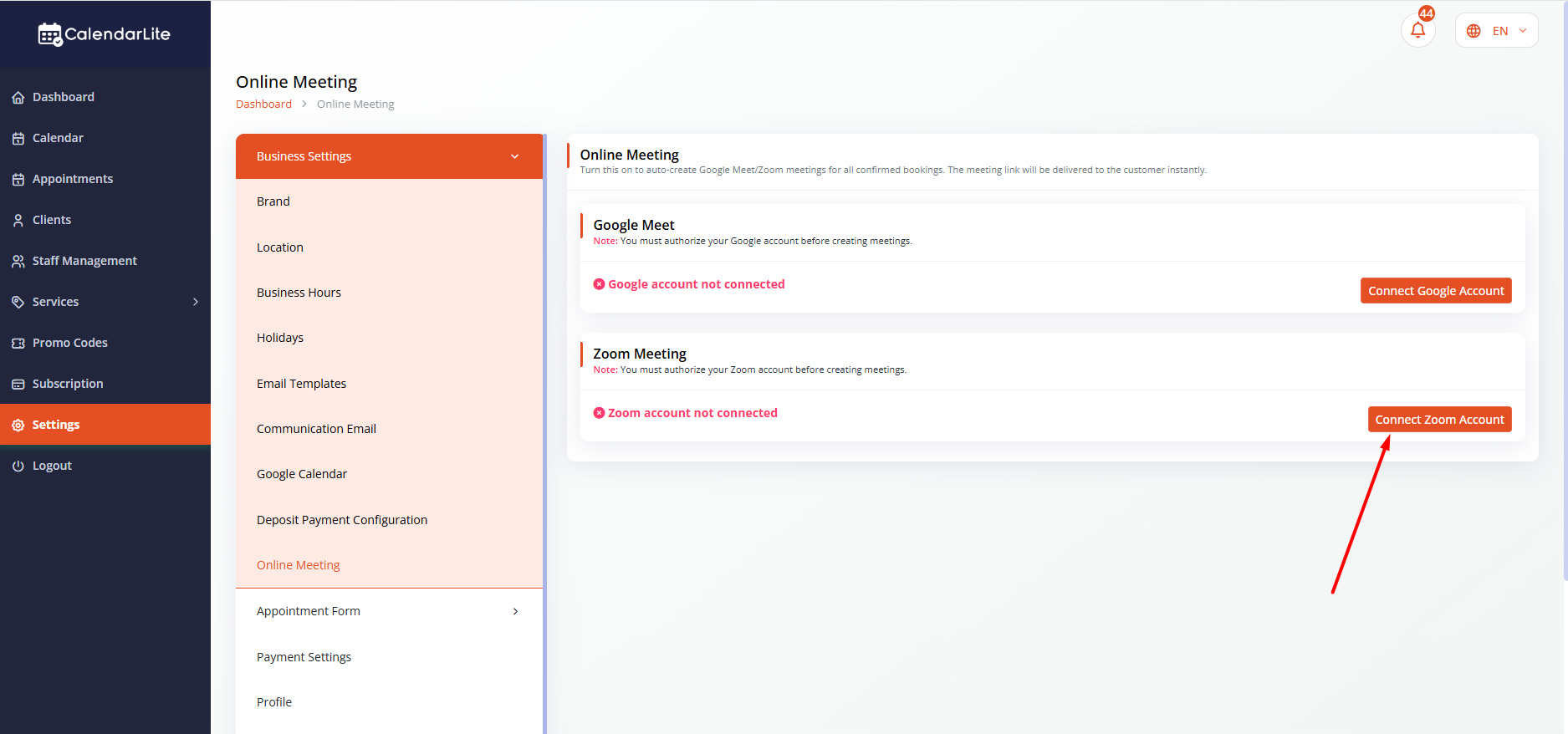
- Go to Settings -> Online Meeting
- Scroll down to the Zoom section and click Connect to Zoom.
Usage
Before you start using Calendar Lite Appointment Booking app with Zoom, ensure the following prerequisites are met:
- You must have an active Calendar Lite account with proper access permissions.
- Zoom must be authorized to access Calendar Lite features and functionalities.
Requirements
- User role: Any user Learn more
- Zoom account eligibility: No additional requirements
(Permissions are controlled by your account administrator)
Once this connection process is complete, whenever an appointment is created, a Zoom meeting will be generated automatically.
Sending Zoom links to customers through email notifications
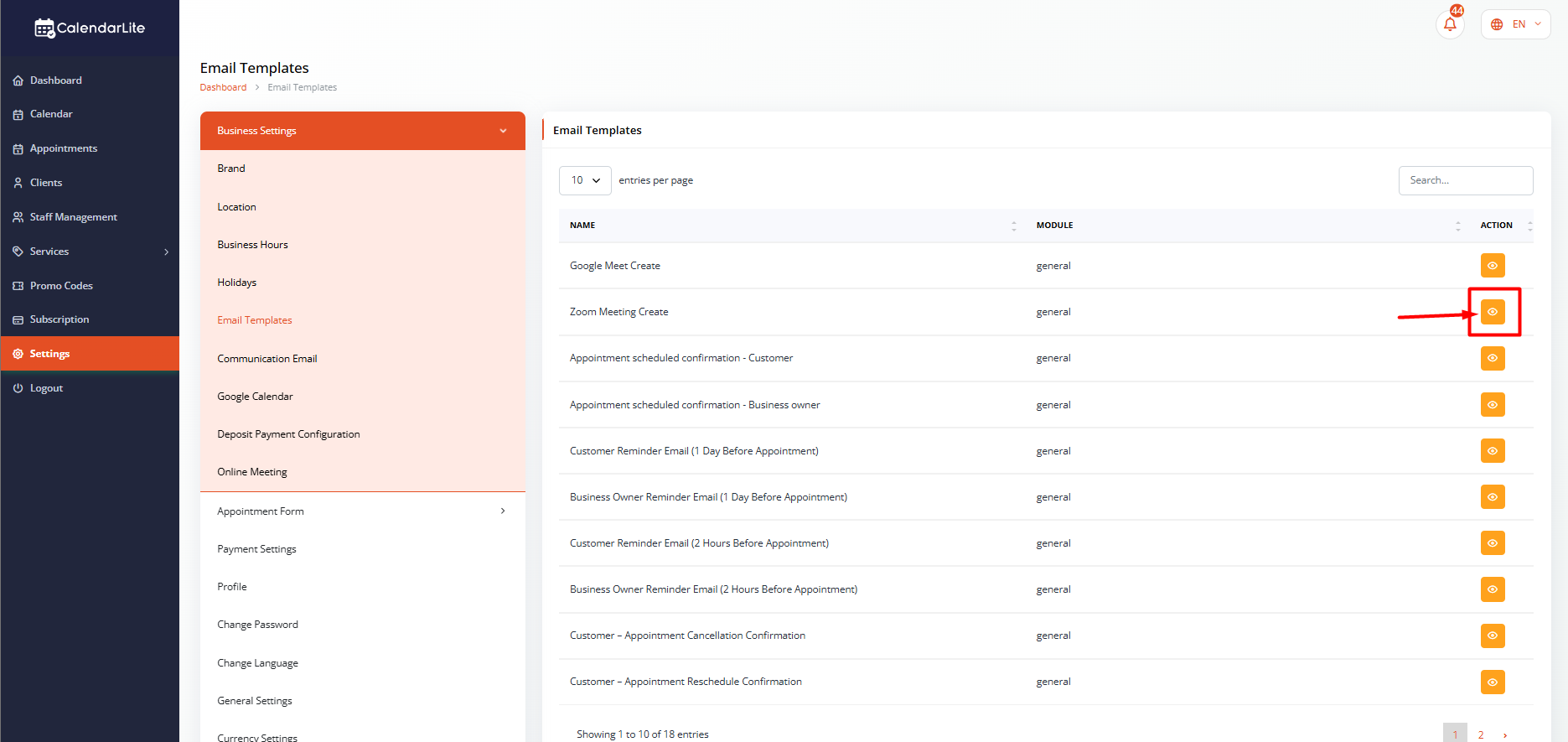
- Go to Settings -> Business settings -> Email templates.
- Click on view button for “Zoom meeting create”
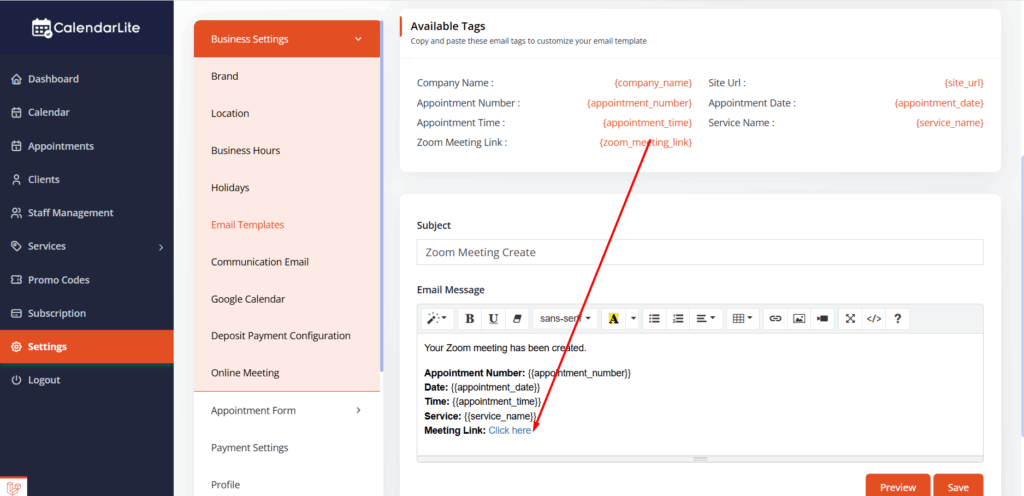
- Calendar Lite has already set up the Joining details {zoom_meeting_link} variable into your email templates. {zoom_meeting_link} is replaced with Zoom meeting links and automatically sent to customers.
Disconnect your Zoom account
By removing Calendar Lite Appointment Booking app from your Zoom account, all data made with Calendar Lite will be removed. You can disconnect your Zoom account from Calendar Lite by following these steps:
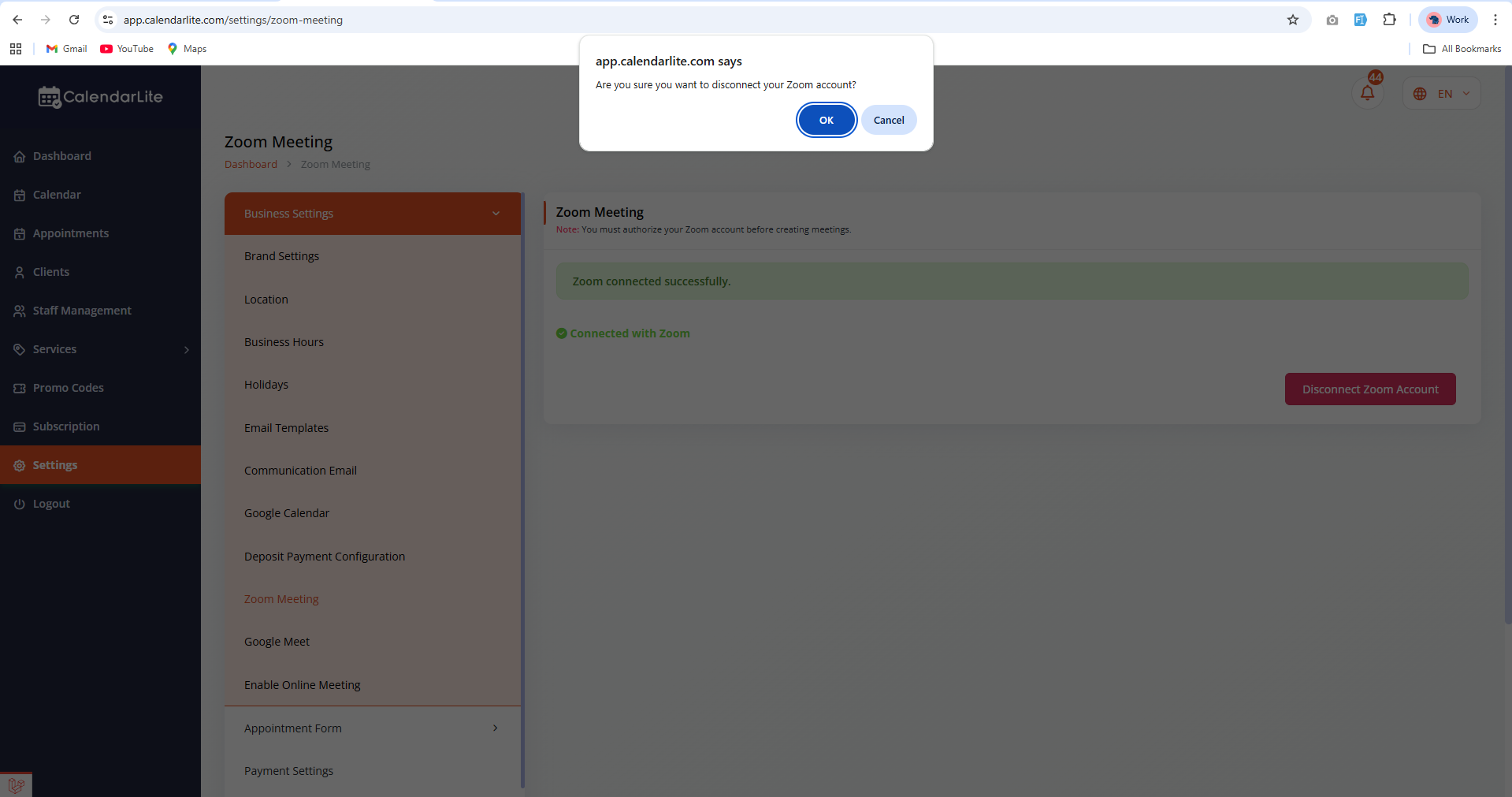
- Go to Settings -> Business Settings -> Online meetings.
- Scroll down to the Zoom section and click Disconnect Zoom Account.
Removing Zoom Integration
By removing Calendar Lite Appointment Booking app from your Zoom account, all data made with Calendar Lite will be removed. You can remove Zoom Integration by following these steps:
- Login to your Zoom Account and navigate to the Zoom App Marketplace.
- Click Manage -> Added Apps or search for Calendar Lite app.
- Click Remove.